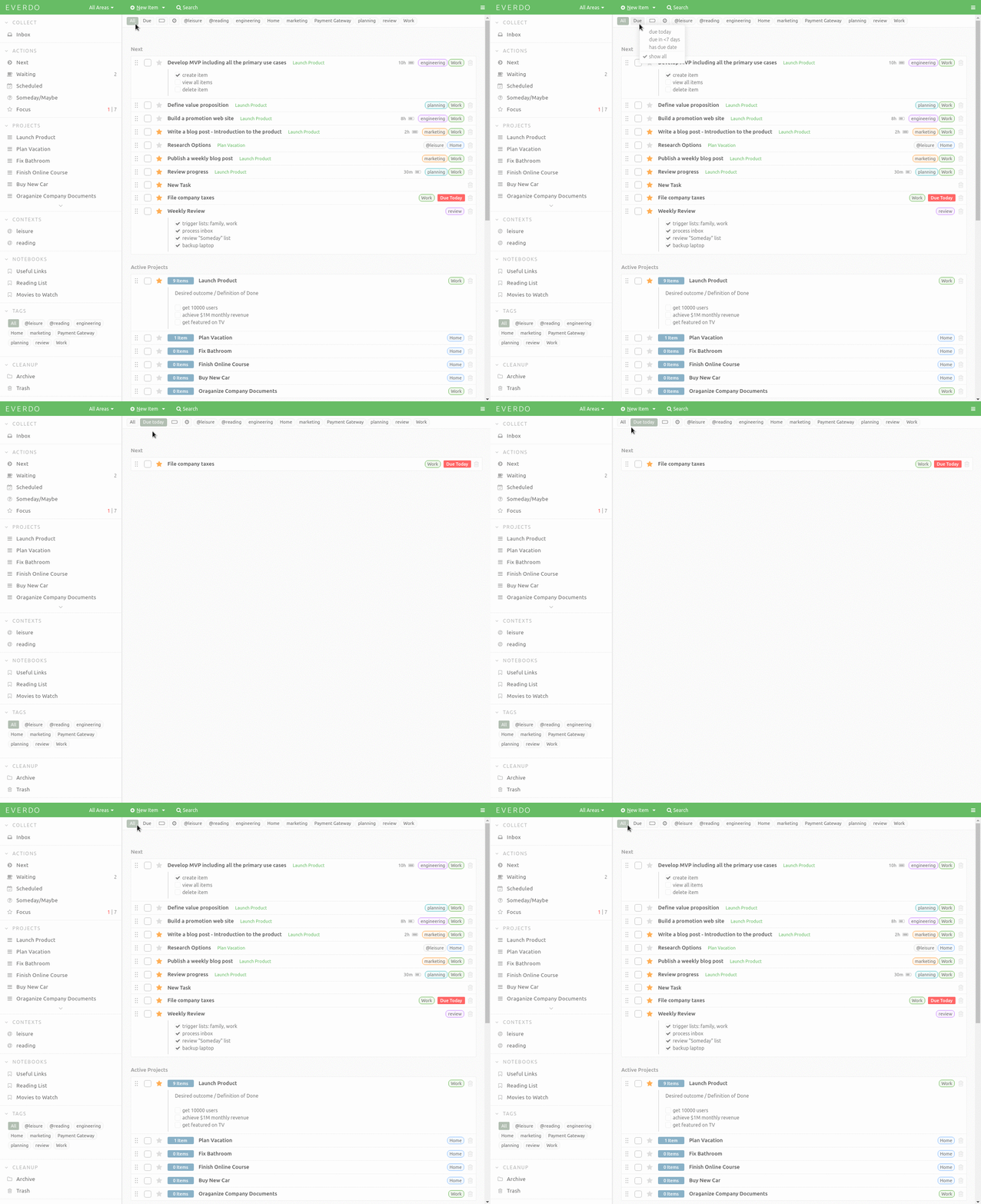
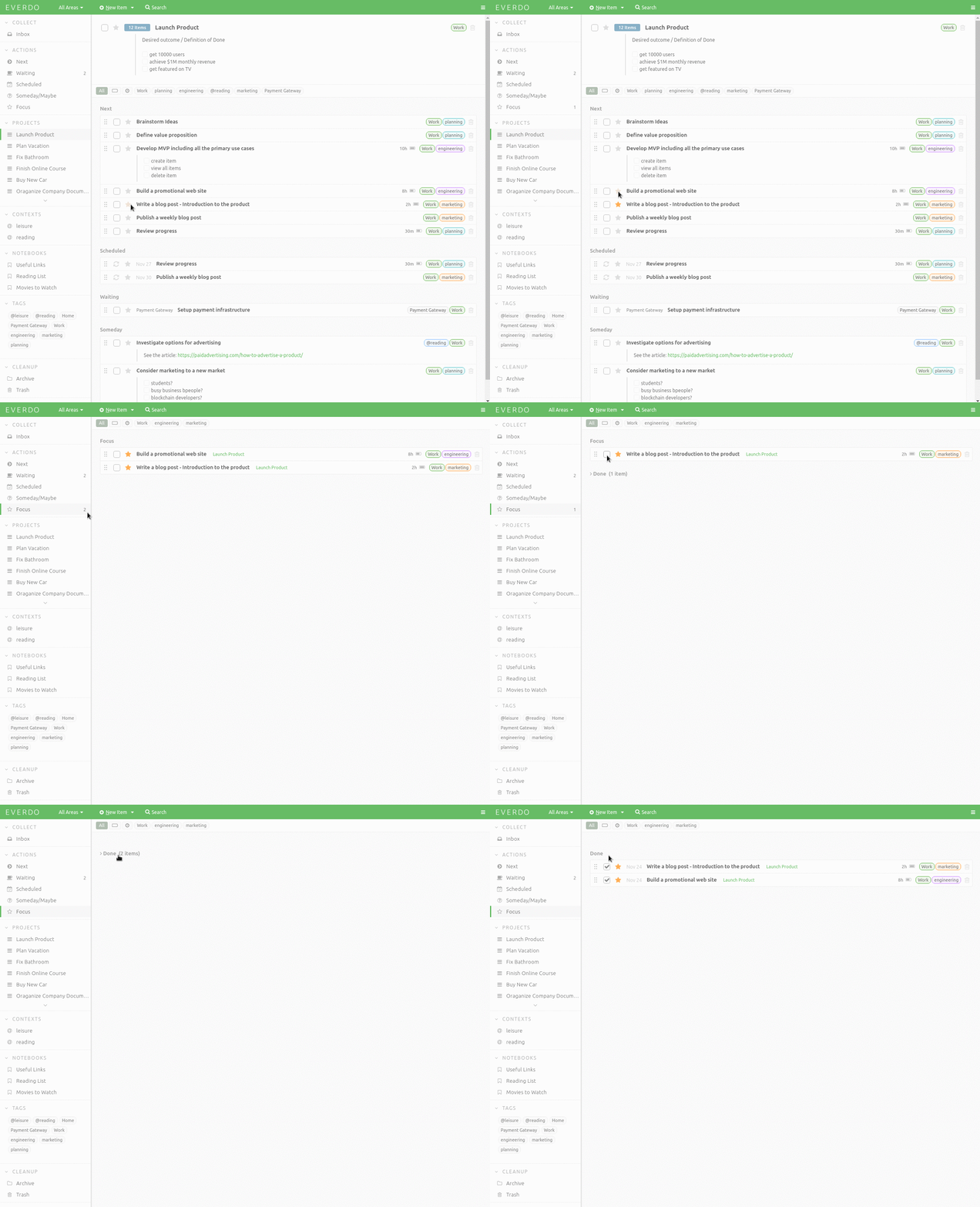
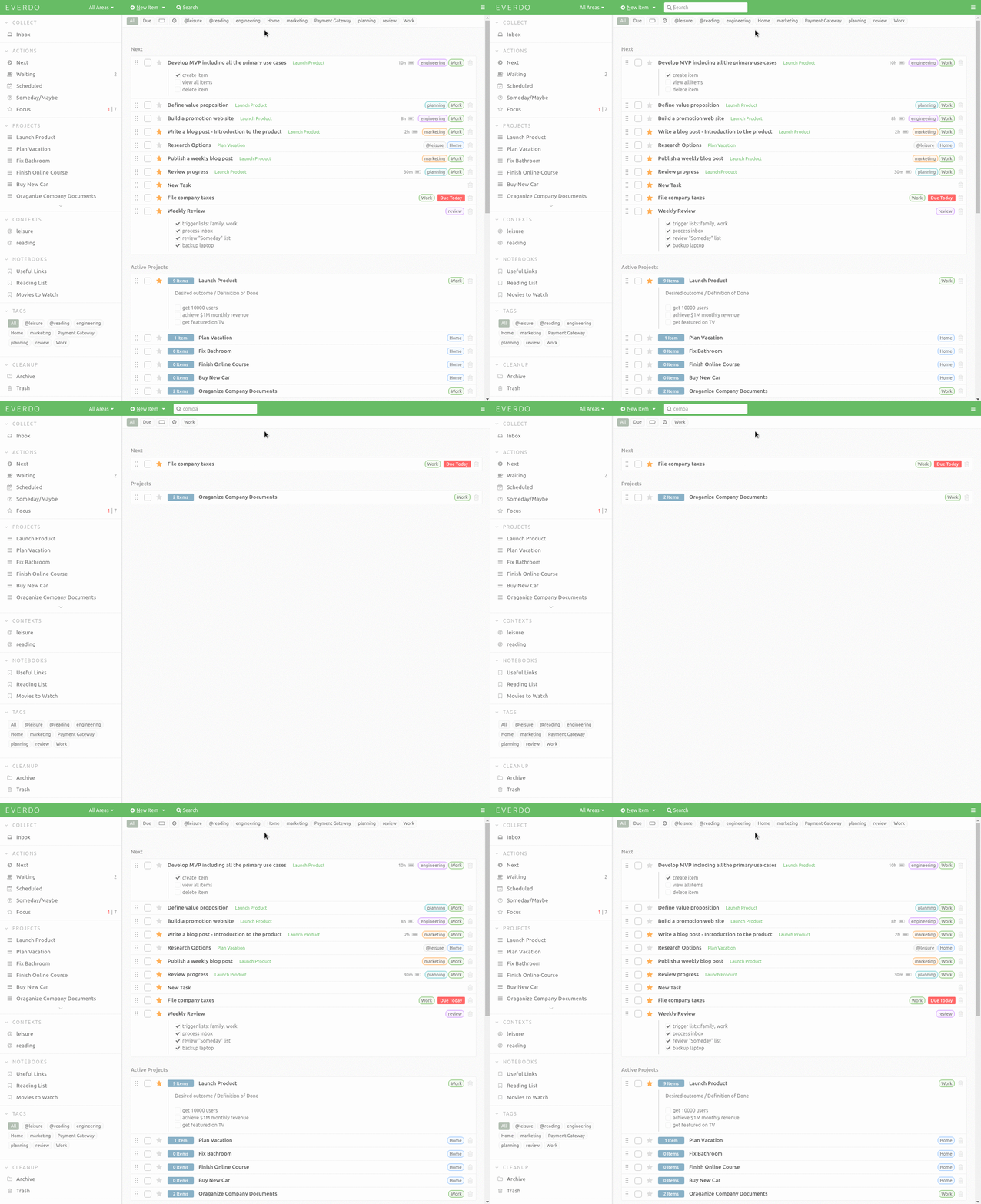
We have designed Everdo so that it is easy to get started with Getting Things Done and maintain the system over time. This page highlights some of the core Everdo features that you'll find indispensable for GTD.
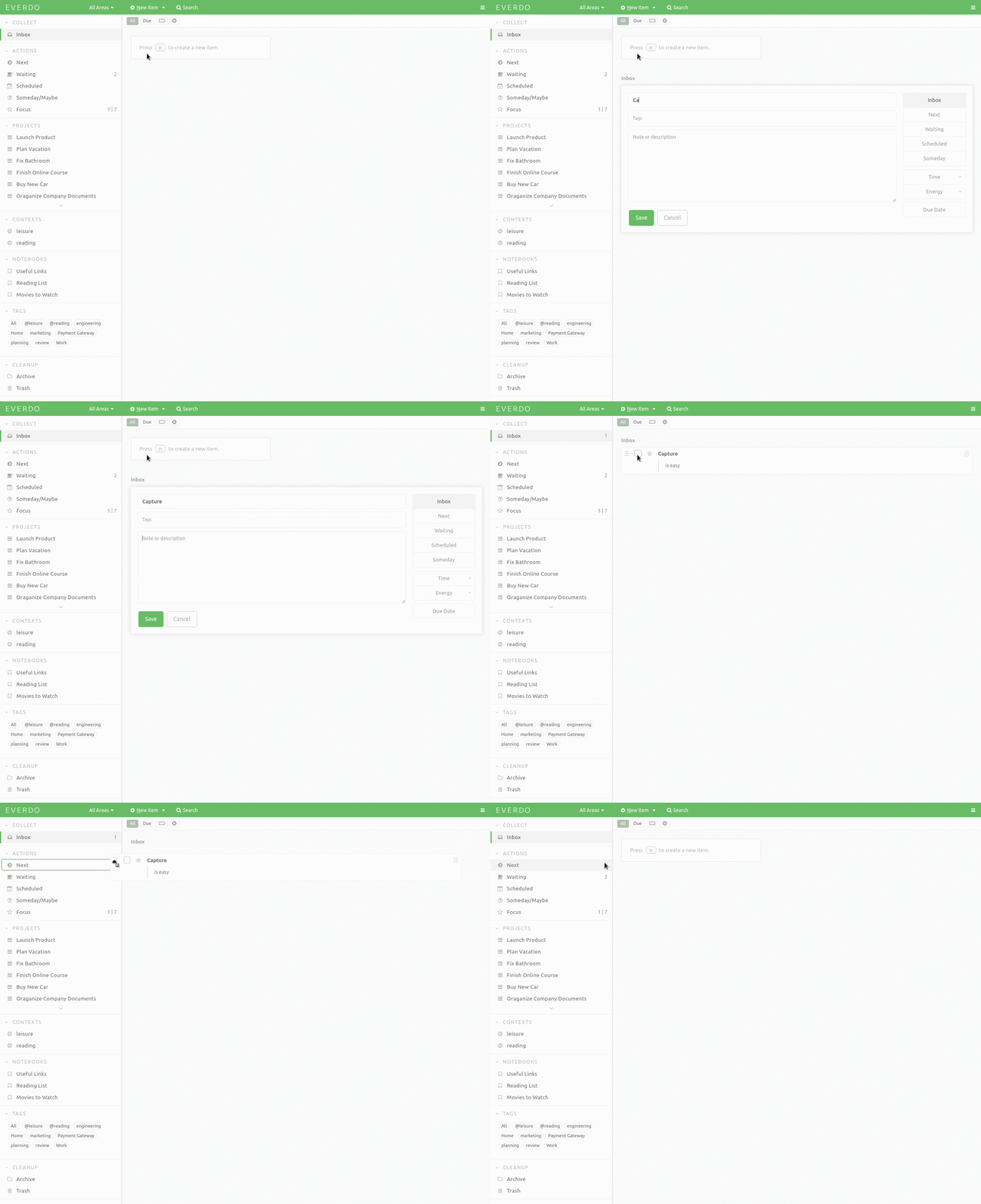
Throughout the day you can easily add to-dos and notes to Inbox in the mobile apps by sharing text or a web page from your browser or another app. The captured items are then synced to your computer where it's easier to organize tasks and follow the GTD workflow.
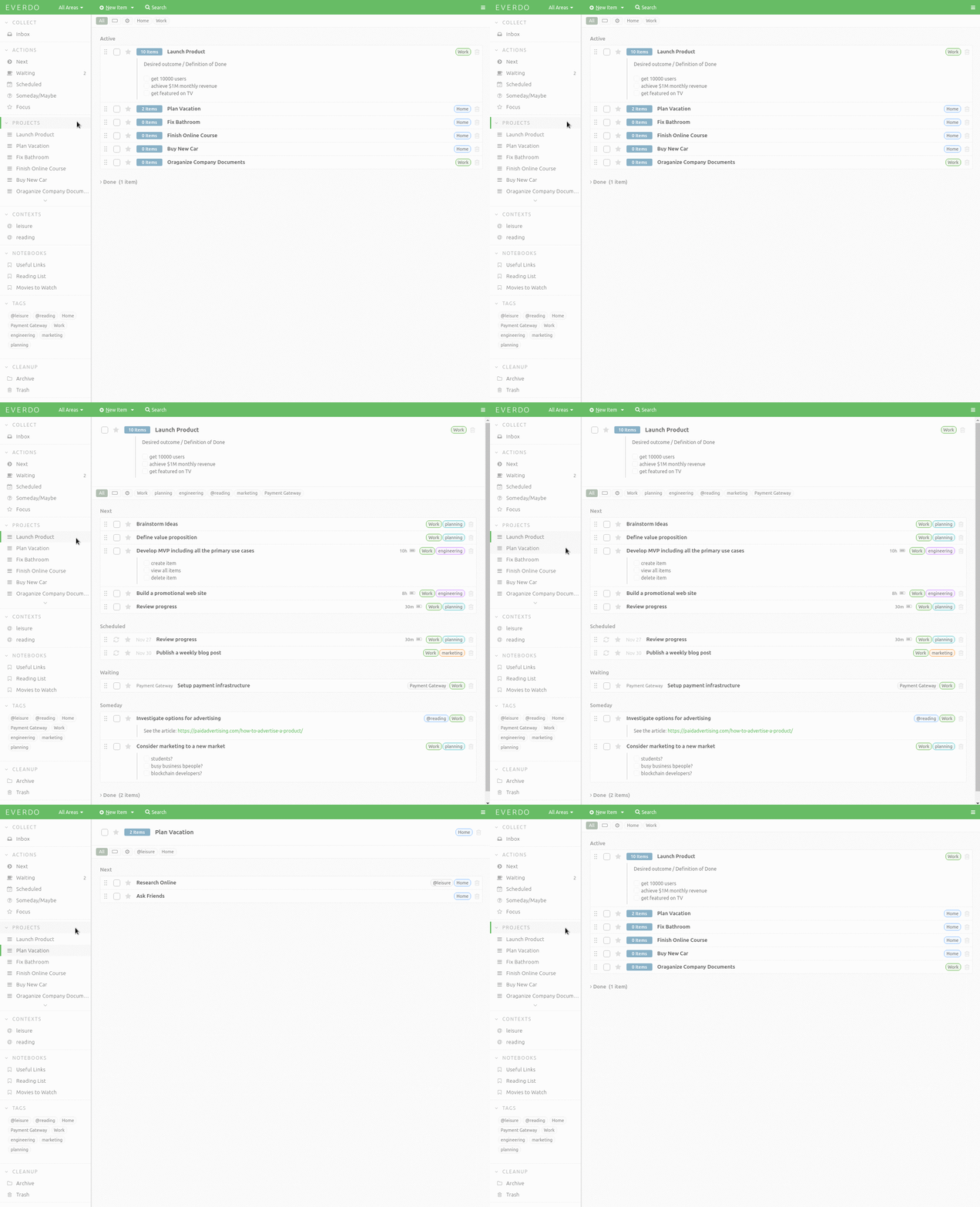
While processing the Inbox, you categorize the items into one of the lists: Next, Waiting, Someday, Scheduled and Projects. Each list has a specific purpose according to the Getting Things Done method.
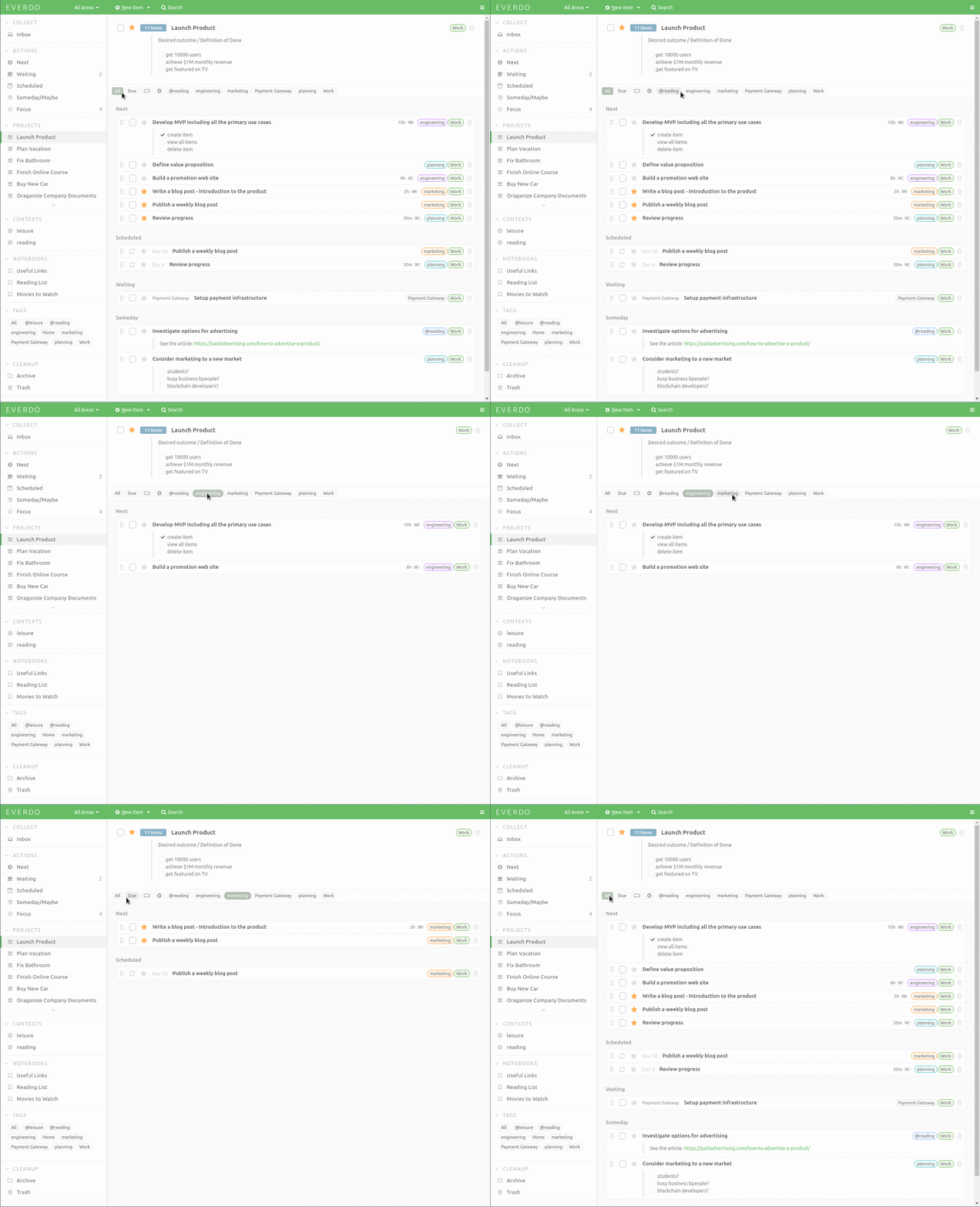
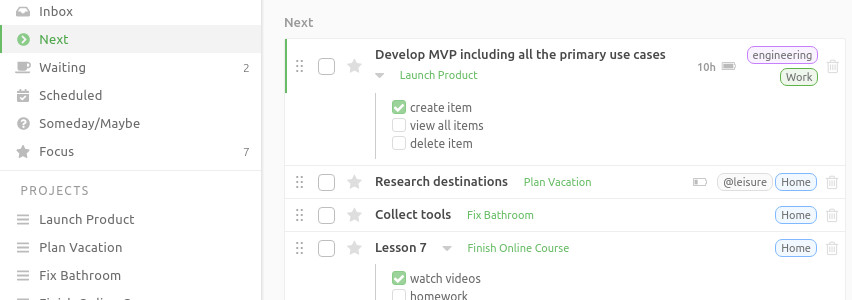
Next combines all of your actionable tasks from active projects, as well as the standalone actions. You can then filter the aggregated list by your context, time and more. This makes it easier to pick the right things to do right now.
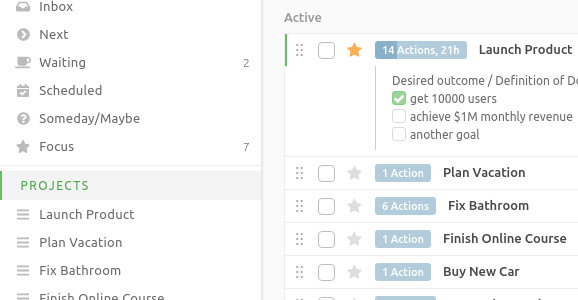
Each Project can be set up as either Parallel, or Sequential, which controls how many actions from each project will be included in Next.
You can learn more in Projects Documentation.
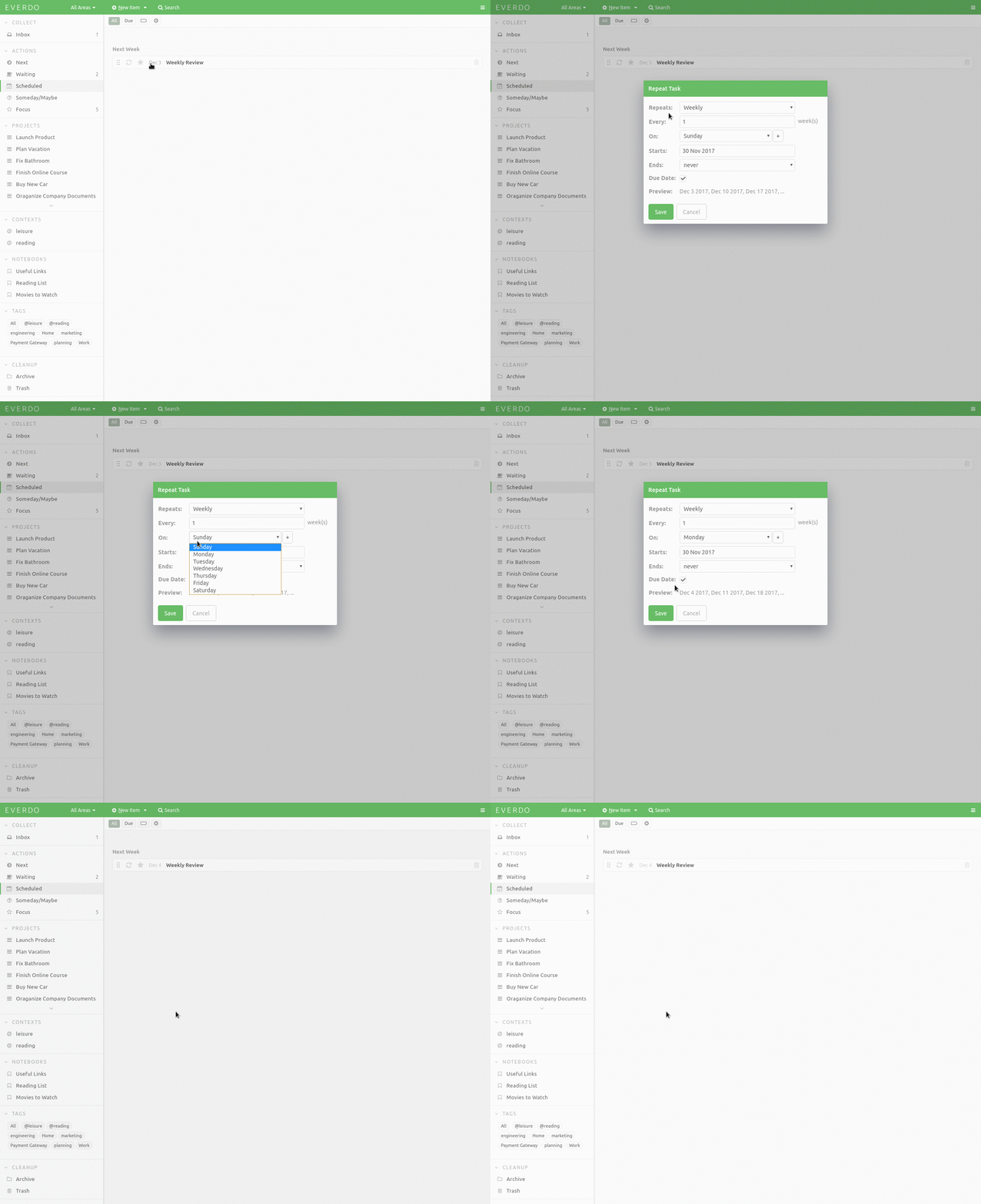
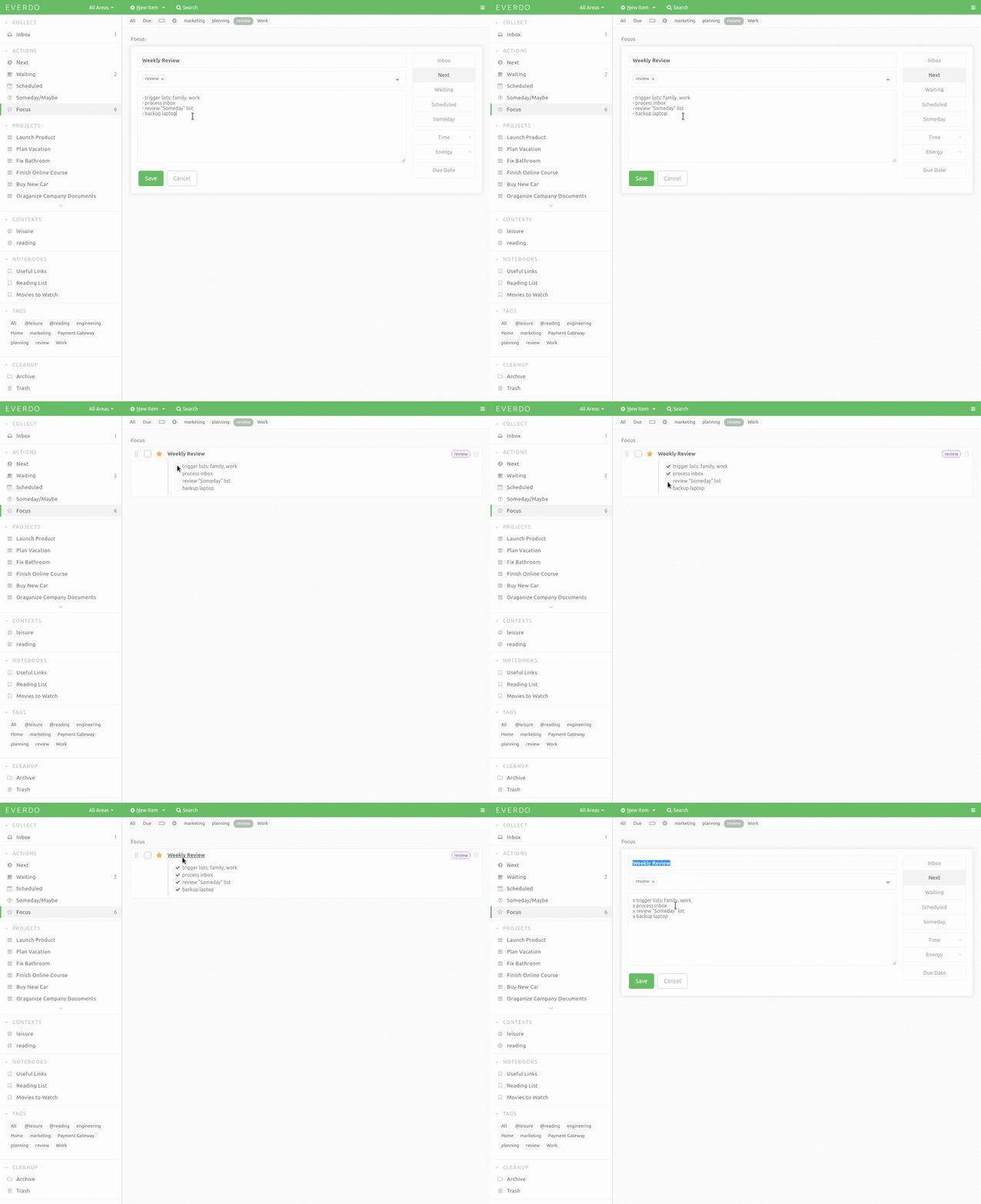
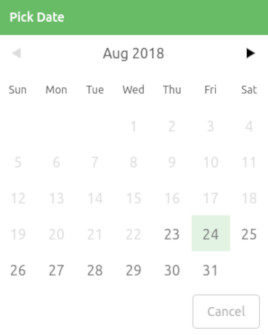
Deferring an action will move it to Scheduled until the date you specify. Then the action will be moved to Next and become Focused.
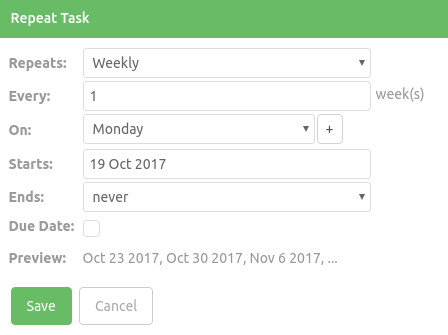
Make Repeating allows you to specify a schedule according to which the acton repeats. A Repeating action will automatically make a focused copy of itself according to the schedule you specify.
You can learn more in Scheduling Documentation.
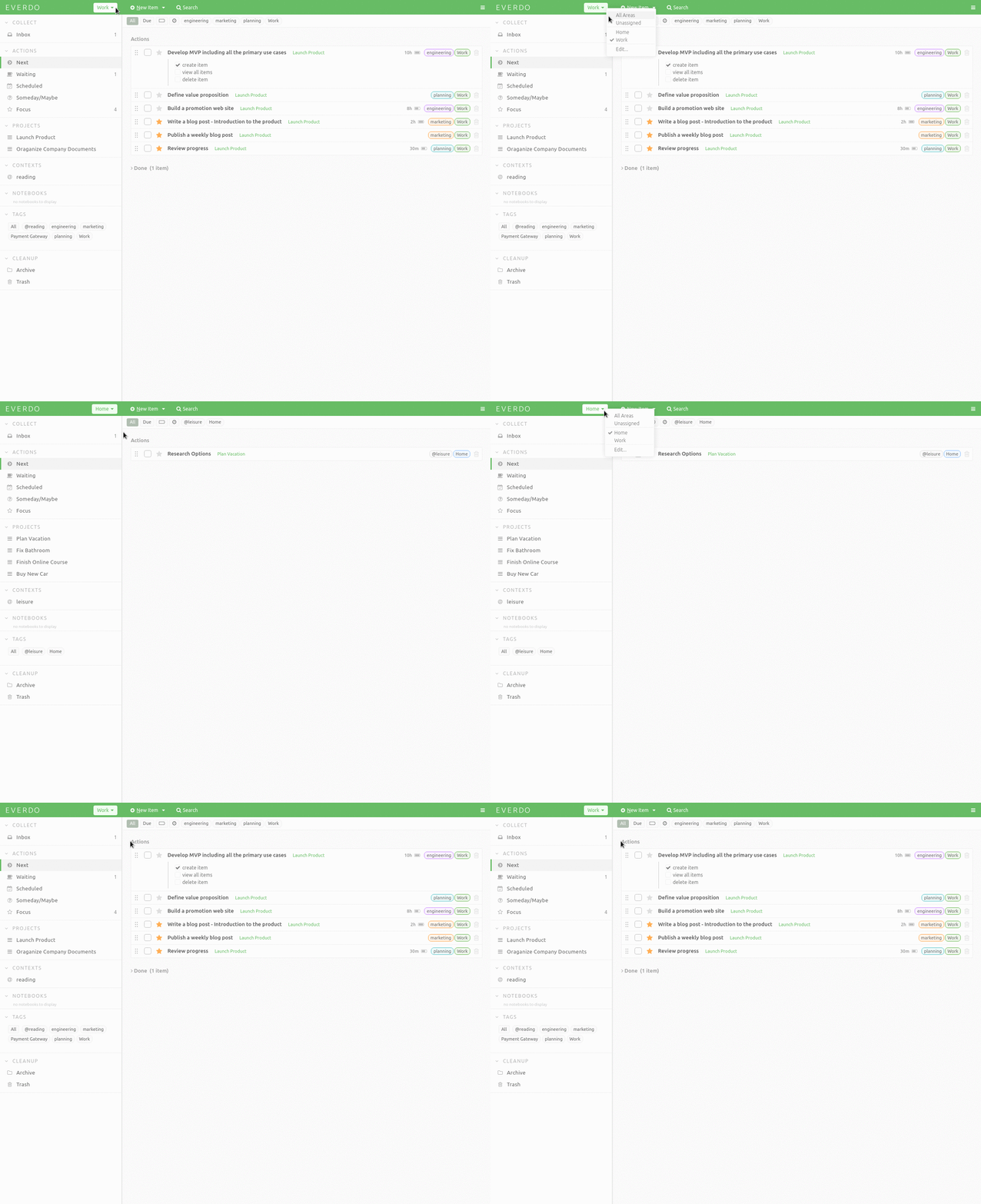
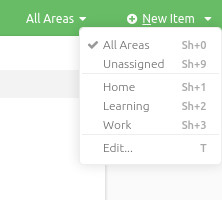
Areas act as global filters separating the major commitments of your work and life, for example Home, Work, Study.
Contexts help you pick relevant work based on the current environment, for example @groceries, @calls, @computer.
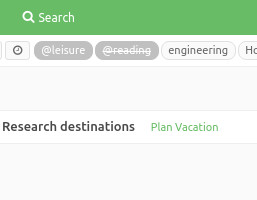
Labels can be used to categorize items in any way that makes sense to you, for example priority, leisure and so on.
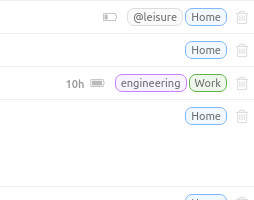
You can filter Next and other lists, using a combination of these tags as well as other properties of the actions. To learn more about tags and filtering, use Tags Documentation, Filtering Documentation.
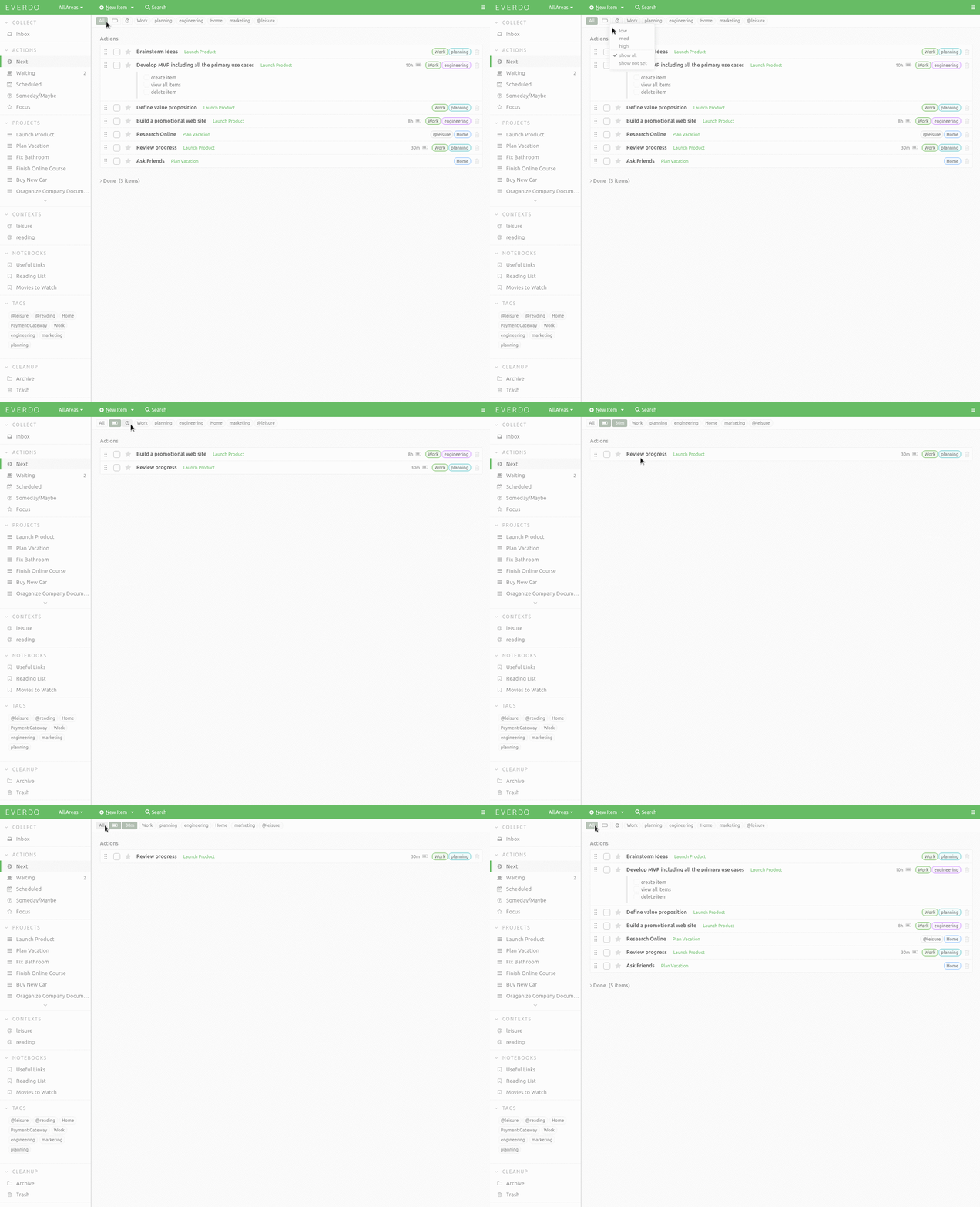
An additional way to pick the right task to work on is based on the available time and energy. For example, you may want to choose the most challenging work at the beginning of the day and leave the easy stuff for later.
To learn more about filtering by Time and Energy, go to Filtering Documentation.
You can visit the user manual to learn more about Everdo features.